
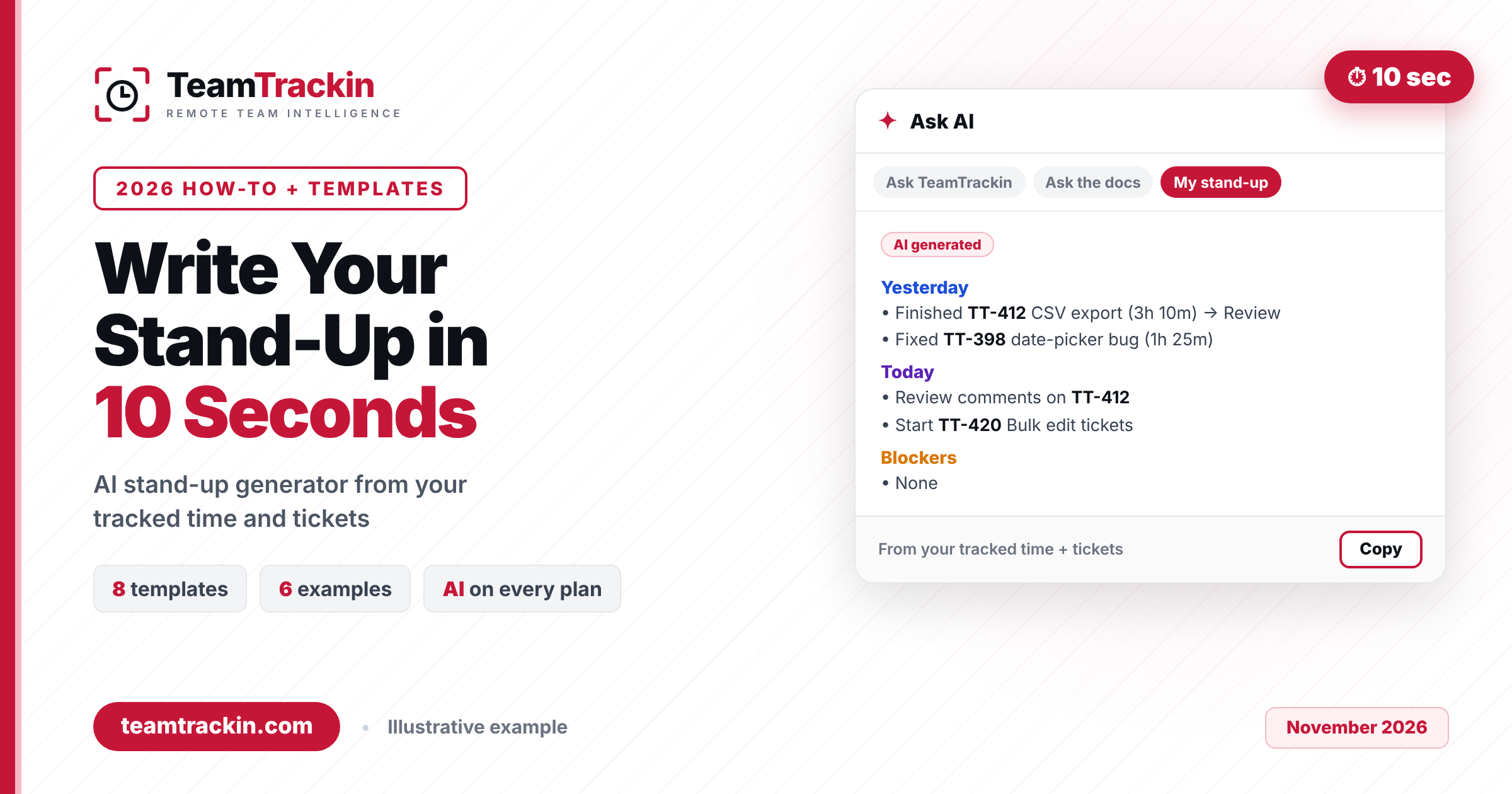
An AI stand-up generator writes your daily stand-up update (what you did yesterday, what you will do today and what is blocking you) from the work you have already logged, so you review it instead of typing it from memory. This guide shows how to write your stand-up in about 10 seconds with TeamTrackin AI, gives you 8 copy-and-paste daily stand-up templates and real examples by role, and explains how to keep AI-written updates accurate and private.
An AI stand-up generator drafts your daily stand-up (yesterday, today and blockers) from the time and tickets you have already logged, so writing it takes seconds instead of minutes. In TeamTrackin, click ✦ Ask AI in the top bar, open the My stand-up tab, review the draft, add anything only you know (such as a blocker), and paste it into your team channel.
TeamTrackin AI is included on every plan with monthly AI credits, and most AI actions use 1–2 credits. It only reads data you can already see, your data is not used to train AI models, and every result is labelled as AI generated. Plans start at $3.99 per user per month, with a 14-day free trial and no credit card.
What Is an AI Stand-Up Generator?
An AI stand-up generator is a tool that writes your daily stand-up update for you. It reads the work you have already recorded, such as tracked time, tickets you moved and tasks you closed, and turns it into the familiar three-part update: what you did yesterday, what you plan to do today, and anything blocking you.
The difference from a stand-up template is where the content comes from. A template gives you headings and you still fill them in from memory. A generator fills them in from data, so the update is faster to write and more accurate, especially on a Monday morning or after a day full of context switching.
The best AI stand-up generators share three traits:
- They use your real work data. A generic AI chatbot can tidy up words you give it, but it does not know what you worked on. A generator built into your time tracking and project tool does.
- They keep you in charge. The AI drafts; you check it, add the context only you have, and decide what to share.
- They respect permissions. The draft should only use data you can already see, and nothing should be posted or changed without you.
TeamTrackin's version lives in the TeamTrackin AI assistant, under the My stand-up tab of the ✦ Ask AI panel.
An AI stand-up generator is a tool that writes your daily stand-up update from work you have already logged, such as tracked time and tickets. It produces the usual yesterday, today and blockers format in seconds. You review the draft, add context such as blockers, and share it with your team.
What Should You Say in a Daily Stand-Up?
In a daily stand-up, each person shares a short update that answers three questions: What did I do yesterday? What will I do today? Is anything blocking me? The goal is to help the team see progress and remove obstacles quickly, not to report every task to a manager.
The three questions come from early Scrum practice and are still the most common format. The current Scrum Guide (2020) no longer requires them. It describes the Daily Scrum as a 15-minute event for the Developers to inspect progress toward the Sprint Goal, and lets each team choose its own structure. Many teams now open with the sprint goal and then share updates.
| Stand-up format | What each person shares | Best for |
|---|---|---|
| Classic three questions | Yesterday, today, blockers | Most teams, new teams, async updates |
| Sprint-goal first | Progress toward the sprint goal, next step, risk | Scrum teams that want outcome-focused updates |
| Walk the board | The team discusses each ticket from right to left | Kanban teams and busy boards |
| Async written stand-up | A written update in a channel by a set time | Remote teams across time zones |
How long should a daily stand-up be?
The meeting should take no more than 15 minutes for the whole team, which is the time-box in the Scrum Guide. That leaves about one to two minutes per person in a team of seven to ten. A written update should be readable in under 30 seconds: three to six short bullet points is usually enough.
The rule of a good stand-up: if a detail does not help a teammate act today, move it to a follow-up conversation after the stand-up.
How to Write Your Daily Stand-Up in 10 Seconds With AI
Writing a stand-up by hand means scrolling through yesterday's tickets, commits and messages and trying to remember what you finished. With an AI stand-up generator, the tool does that gathering for you. Here is how it works in TeamTrackin, from opening the panel to posting your update.
Track your work as usual
TeamTrackin AI writes from what is already recorded, so keep the desktop tracker running and move your tickets as you work. There is nothing to install: AI is included on your plan with no setup or extra keys.
Click ✦ Ask AI
Click the ✦ Ask AI button in the top bar, or press Ctrl/⌘ K, type your request and pick Ask AI.
Open the My stand-up tab
Choose My stand-up. TeamTrackin AI writes today's stand-up, with yesterday, today and blockers, from your own tracked time and tickets. You can ask for your weekly report from the same tab.
Review the draft and add context
Read the draft, which is labelled AI generated. Add anything the data cannot show, such as a blocker, a decision you are waiting on, or time off.
Paste it where your team reads stand-ups
Copy the update into Slack, Microsoft Teams, email or your stand-up meeting notes. Most AI actions use 1–2 credits from your plan's monthly allowance.
What the AI-written stand-up looks like
Here is an illustrative example of the kind of draft you can expect. TeamTrackin's stand-up follows the yesterday, today and blockers format and is written from your own tracked time and tickets, ready to paste.
Notice what the AI cannot know: that TT-420 is waiting on a design decision, or that you are out after lunch. That is the 10 seconds of human input that turns a good draft into a useful update. Add it, then post.
Click ✦ Ask AI in the top bar (or press Ctrl/⌘ K and pick Ask AI) and open the My stand-up tab. TeamTrackin AI writes today's stand-up, with yesterday, today and blockers, from your own tracked time and tickets. Review the draft, add any blocker or context, then paste it into your team channel.
8 Daily Stand-Up Templates You Can Copy and Paste
Use these daily stand-up templates whether you write updates by hand or edit an AI draft. Each one is plain text, so it works in Slack, Microsoft Teams, email or a ticket comment. Pick the one that fits how your team runs stand-ups and keep it the same every day so updates are easy to scan.
1. Classic three-question stand-up template
The standard format, and the one TeamTrackin AI writes. Use it if your team has no strong preference.
2. Sprint-goal stand-up template (Scrum Guide 2020 style)
Starts with the outcome the team is working toward, which keeps updates focused on the sprint goal rather than on activity.
3. Async stand-up template for Slack or Teams
Short and scannable, with emoji markers so readers can find blockers at a glance.
4. Blocker-first stand-up template
Good for teams under deadline pressure, where unblocking work matters more than reporting it.
5. Remote stand-up template with time-zone hand-off
For distributed teams where one person's evening is another person's morning.
6. Agency and client-project stand-up template
Groups the update by client, with hours, so account managers can see where time went without asking.
7. Weekly report template
The weekly version of a stand-up. TeamTrackin AI can write this too, with time per ticket and project, highlights and risks.
8. Team lead roll-up template
For leads who summarise the team's stand-ups for a manager or client.
A template fixes the shape of the update. A generator fills it in. Teams get the most from both: agree on one template, then let AI write the first draft in that shape from tracked time and tickets, and spend the saved minutes on the blockers.
Skip the blank page tomorrow morning
TeamTrackin AI writes your stand-up from your tracked time and tickets — included on every plan.
Daily Stand-Up Examples by Role
These daily stand-up examples show what a clear, specific update looks like for different jobs. Each one is short, names concrete work, and states blockers plainly.
Bad vs good stand-up update
| Vague update | Clear update |
|---|---|
| "Worked on the export stuff." | "Finished CSV export (TT-412), now in review." |
| "Same as yesterday." | "Still on TT-420; about half done, aim to finish tomorrow." |
| "No blockers, I think." | "Blocked on API keys — @Sam, can you share them by noon?" |
| "Lots of meetings." | "3h in client calls; moved TT-398 to tomorrow." |
How to Write a Good Stand-Up Update (and What Not to Say)
A good stand-up update is short, specific and useful to someone else on the team today. Whether you write it yourself or edit an AI draft, these rules keep it that way.
Lead with outcomes, not activity
"Shipped the export" beats "worked on the export". Say what changed, and use ticket IDs so people can click through.
Make blockers specific and addressed
Name what is stuck, who can help, and by when. A blocker without an owner rarely gets solved in the meeting.
Keep it to three to six bullets
If your update needs more, it is probably a status report. Share the detail in a ticket or a follow-up.
Mention changes to your availability
Leave, a half day or a long client call affects what the team can plan around.
Check AI drafts before you post
AI writes from what was logged. If you forgot to track time or update a ticket, the draft will miss it, so read it once and fix gaps.
What not to say in a stand-up
- Long technical explanations. Take them offline with the people who need them.
- Hours as proof of effort. Time per ticket is useful context; "I worked 11 hours" is not a status.
- Problem-solving in the meeting. Flag the issue, agree who will meet after, and move on.
- Private or sensitive details. Health, personal matters or HR issues belong in a one-to-one, not a team channel.
A 10-second test: could a teammate who missed yesterday read your update and know what to do next? If yes, it is a good stand-up.
Is It OK to Use AI to Write Your Stand-Up?
Yes, as long as the update stays accurate and your data stays private. A stand-up is a factual summary of your work, which is exactly what AI does well when it reads from real work records. The risks come from generic AI tools that guess, or from pasting company data into apps your business does not control.
Ask any AI stand-up generator these questions. Here is how TeamTrackin AI answers them, based on its product page and AI user guide.
It is safe when the AI reads only your own work data, does not train on it, and lets you review the draft before sharing. TeamTrackin AI only reads what you can already see, does not use customer data for training, does not store prompts or answers, and labels every result as AI generated.
AI Stand-Up Generator vs Writing It by Hand vs a Stand-Up Bot
There are three common ways to produce a daily stand-up. Stand-up bots in chat apps collect answers on a schedule, but you still type every answer. A generic AI chatbot can polish your notes, but it does not know your work. An AI stand-up generator inside your time and project tool drafts the answers from data.
| What matters | AI stand-up generator (TeamTrackin) | Written by hand | Stand-up bot in chat |
|---|---|---|---|
| Where content comes from | Your tracked time and tickets | Your memory | Your typed answers |
| Time to write | Seconds to review a draft | Minutes of looking back | Minutes of typing |
| Accuracy | Matches what was logged | Easy to forget tasks | Easy to forget tasks |
| Time per ticket | In the weekly report | Only if you add it | Only if you add it |
| Weekly report | Written from the same data | Written separately | Usually a separate tool |
| Extra cost | Included on every TeamTrackin plan | None, but costs time | Often a separate subscription |
This is an illustration, not a measured result. Swap in how long your team really spends gathering and writing updates. With an AI draft, most of that time becomes a quick review.
What to look for in an AI stand-up generator
- Does it read real work data? Time entries and tickets, not just the words you type.
- Does it write weekly reports too? One source for daily and weekly updates saves double work.
- Does it follow permissions and keep data private? Get it in writing whether your data is used for training or stored.
- Is it included or an add-on? Check how usage is counted and what happens when you reach the limit.
How TeamTrackin Writes Your Stand-Up for You
TeamTrackin's AI stand-up generator works because the data is already there. TeamTrackin tracks time on Windows, macOS and Linux with its time tracking software, and runs tickets, epics and sprints on its scrum boards. TeamTrackin AI uses both to write your stand-up and your weekly report, so nobody on the team starts from a blank page.
Open ✦ Ask AI from the top bar or the Ctrl/⌘ K palette and you get four tabs: Ask TeamTrackin, Ask the docs, My stand-up, and Meeting → tickets. My stand-up writes today's stand-up or your weekly report from your own tracked time and tickets. The full walkthrough is in the TeamTrackin AI user guide.
What it costs
TeamTrackin AI is included on every plan with a monthly allowance of AI credits, and most actions use 1–2 credits. Credits reset on the 1st of each month. If you need more, an admin with Payments access can buy credit packs, starting at £5 for 500 credits, and pack credits never expire. See all plans on the pricing page.
| Plan | Price (monthly billing) | AI credits a month | Good for stand-ups because |
|---|---|---|---|
| Basic | $3.99 per user | 50 | Time tracking and reports |
| Standard | $5.99 per user | 300 | Adds projects, boards and tickets |
| Premium (Most Popular) | $7.99 per user | 1,000 | Adds documents, client portal and invoicing |
| Shift | $4.99 per user | 100 | Field and shift teams |
| Enterprise | Custom | 3,000 | Large teams with custom terms |
Because the stand-up draws on tickets as well as time, teams that run their work on boards get the most complete drafts on Standard and above. Yearly billing saves 10%.
Frequently Asked Questions
- What is an AI stand-up generator?
An AI stand-up generator is a tool that writes your daily stand-up update from work you have already logged, such as tracked time and tickets. It produces the usual yesterday, today and blockers format in seconds. You review the draft, add context such as blockers, and share it with your team.
- What are the three questions in a daily stand-up?
The three classic daily stand-up questions are: What did I do yesterday? What will I do today? Is anything blocking me? The 2020 Scrum Guide no longer requires these questions and lets teams choose their own format, but most teams still use them because they are quick to answer and easy to scan.
- How long should a daily stand-up be?
A daily stand-up meeting should take no more than 15 minutes for the whole team, which is the time-box set in the Scrum Guide. That is about one to two minutes per person. A written stand-up update should be three to six short bullet points that a teammate can read in under 30 seconds.
- Is it safe to use AI to write my stand-up?
It is safe when the AI reads only your own work data, does not train on it, and lets you review the draft before you share it. TeamTrackin AI only reads data you can already see, does not use customer data to train AI models, does not store prompts or answers, and labels every result as AI generated.
- Does TeamTrackin have an AI stand-up generator?
Yes. Click ✦ Ask AI in TeamTrackin and open the My stand-up tab to get today's stand-up or your weekly report, written from your own tracked time and tickets. TeamTrackin AI is included on every plan with monthly AI credits, and most actions use 1–2 credits. You can try it on a 14-day free trial with no credit card.
Stop writing stand-ups from memory.
Let TeamTrackin write the first draft.
Time tracking, scrum boards and an AI stand-up generator in one place, with TeamTrackin AI included on every plan from $3.99 per user per month. Try it free for 14 days.
Start Free Trial→14-day free trial · No credit card · AI included on every plan